You have a search results page with forty job listings on it. You want every one of those postings open in its own tab, or you want the addresses in a spreadsheet so you can work through them tomorrow morning. Middle-clicking forty links takes ten minutes, and you lose your place halfway down. A bulk link opener fixes exactly that: it reads the links already sitting on the page, lets you narrow them to the ones you care about, and opens or copies the whole set in one click. This post covers how one works, where it breaks, and what to do when it does.
What a bulk link opener actually does
A bulk link opener reads every clickable link the browser has already loaded on the current page and puts them in a list you can act on. It does not download anything or talk to a server — it works with the <a href="..."> tags that are already in front of you.
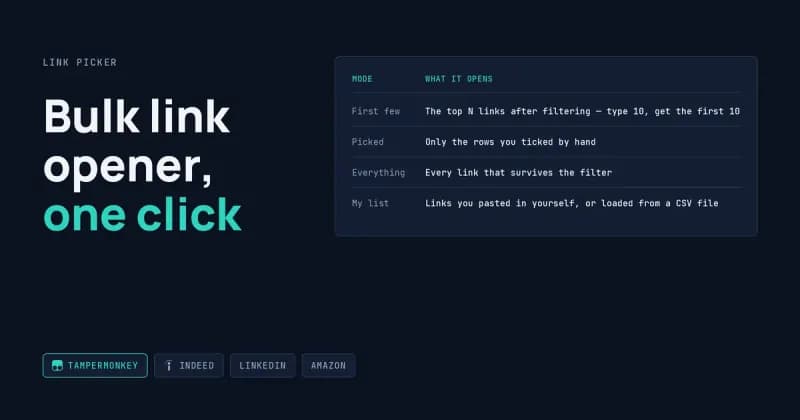
Most of the useful work is in the choosing, not the opening. On an Indeed results page you might have 400 links where only 25 are actual job postings; the rest are filters, saved-search menus, footer items, and the login link. So the tool needs a few different ways of saying "these ones":
Mode | What it opens |
|---|---|
First few | The top N links after filtering — type 10, get the first 10 |
Picked | Only the rows you ticked by hand |
Everything | Every link that survives the filter |
My list | Links you pasted in yourself, or loaded from a CSV file |
"First few" is the range control most people actually want. You set the number, the panel shows you which links are queued before anything happens, and one button opens multiple links at once in background tabs so your current tab stays put.
Filtering down to the job and product links you want
The fastest way to extract job listing links from a crowded page is a pattern match on the address. Job and product URLs almost always share a fragment that navigation links do not.
A plain text filter handles the easy cases — type "engineer" and the list shrinks to matching link text. For the rest, an include and exclude pattern pair does the real work:
Keep links matching:   viewjob|/jobs/view/
Skip links matching:   login|signup|utm_
Some concrete shapes worth knowing:
- Amazon product links contain
/dp/followed by the ten-character ASIN. Keeping only/dp/turns 300 links into the product links and nothing else. - Indeed postings sit under
viewjob; LinkedIn uses/jobs/view/; Glassdoor uses/job-listing/. - Excluding
utm_,login, andsignupremoves most of the noise on any of the four.
Patterns are ordinary regular expressions, so /product/\d+ or /\.pdf$/i both work. Once you have a pattern that fits a site, save it against that hostname — it loads again automatically the next time you land there, which matters when you run the same search every Monday.
Copying links instead of opening them
Often you do not want forty tabs. You want the list, in a file, so you can sort it or hand it to someone. That is the other half of the job: export links to CSV, save them as JSON, copy them as plain addresses, or copy them as a Markdown list with the job titles preserved as link text.
Format | Good for |
|---|---|
Plain addresses | Pasting into a browser, a script, or a chat message |
CSV | Google Sheets, Airtable, Excel — title in one column, address in the next |
Markdown | Notes, tickets, a shared document |
JSON | Feeding into something else programmatically |
A CSV of titles and addresses is usually the honest end point. From there it becomes a data problem rather than a clicking problem, and it can feed into scheduled scrapers and API pipelines that refresh the same list on their own.
Where the tool lives — a Tampermonkey userscript
The simplest home for this is a Tampermonkey userscript. Tampermonkey is a browser extension that runs small JavaScript files on the sites you visit; a userscript is one of those files. You install the extension once, install the script once, and a small panel is available on every site afterwards.
A userscript suits this job because it needs no store review, no build step, and no packaging — you edit one file. The trade-off is that a userscript can only do what a page-level script can do, so anything needing background processes or its own storage backend belongs in a proper Chrome extension instead. The Tampermonkey documentation on script grants spells out where that line sits.
Click here to open script -> Bulk Link Opener
When something goes wrong
Something will. These are the failure modes that actually show up, and the fixes.
Your browser blocks most of the tabs. Open fifteen links with no pause and Chrome or Firefox will quietly refuse the rest, because rapid-fire tab opening looks like a pop-up storm. The fix is a wait of 300–800 milliseconds between tabs, plus allowing pop-ups for that site in your browser settings. A good tool tells you — "12 tabs were blocked. Allow pop-ups for this site, or raise the wait between tabs" — rather than silently dropping them. MDN's reference on window.open covers why browsers behave this way.
The page changes underneath you. Infinite scroll on LinkedIn or Indeed adds links after your scan. Re-scanning automatically would reshuffle the list while you are ticking boxes, so a prompt to rescan on demand is the better behaviour.
Some listings are not links at all. Card-based layouts sometimes make the whole tile a div with a click handler and no href. There is nothing on the page to detect, and no link tool can find it. That case needs a real scraper reading the underlying API response, not a link picker.
Copying or downloading gets blocked. Strict sites can block clipboard writes or file downloads from injected code. The workaround is having both routes available — if copying fails, save a file; if the download is blocked, copy instead.
Duplicate and tracking-heavy addresses. The same posting often appears twice with different utm_ tags. Deduplication by full address helps; stripping tracking parameters helps more.
Rate limiting. Forty job pages opened in four seconds looks like a bot to the site. Slower is safer. And whether a given site's terms of service or robots.txt rules as explained by Google Search Central permit what you are doing is your call, not mine — I can tell you what is technically possible, not what you are allowed to do.
Frequently Asked Questions
Is a bulk link opener the same as a web scraper?
No. A link opener works with links already loaded in your browser and opens or lists them. A scraper visits pages on its own and pulls out fields like salary, company, or price. The opener is manual and instant; a scraper is automated and gives you structured data. Many people start with one and end up needing the other.
How many links can I open at once?
Technically hundreds, practically fifteen to twenty-five per batch. Each tab costs memory, and browsers throttle rapid tab creation. Batches of twenty with a half-second gap are comfortable on most machines. If you want a hundred, export the list to CSV first and work through it in sittings instead.
Can it open links from a spreadsheet instead of a page?
Yes. Paste one address per line, or drop in a CSV and let it find the column holding the links. A first row with no link in it is treated as a header and skipped. That mode ignores the current page entirely, so you can run yesterday's exported list from anywhere.
Why does it miss some job links on LinkedIn?
Usually because the listing is not an anchor tag — it is a clickable card rendered by JavaScript with the address stored in the site's own data rather than an href. Hidden links filtered out by a "skip hidden links" setting can also disappear. Turning that setting off often brings them back.
Does this work in Chrome and Firefox?
Both, plus Edge and most Chromium browsers, since Tampermonkey is available on all of them. Behaviour differs slightly around pop-up blocking and clipboard permissions, which is why the wait-between-tabs setting matters more in some browsers than others. Safari support depends on which userscript manager you use.
If you want a version tuned to your sites
I build custom link tools, scrapers, and userscripts to order — including ones that detect the specific listing pattern on the sites you actually use and drop the results straight into Google Sheets. If that sounds like your problem, tell me what you need built and I will scope it.