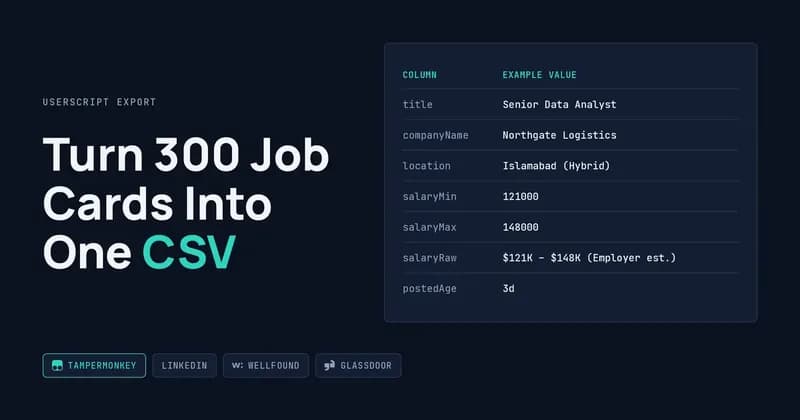
You search jobs near me, scroll through three hundred cards, and then try to hold the good ones in a notes app or a graveyard of open tabs. By Thursday you cannot remember which company posted the £45k role, whether the remote one was still open, or if you already applied. This article covers a different approach: a small userscript that reads the job board's own results page and writes every listing into a CSV file you can sort, feed to an AI model, or send to somebody else.
Why collecting jobs near me by hand falls apart
Manual collection breaks because job boards are built for browsing, not for record keeping. The results list loads in batches, re-renders as you scroll, and forgets what you already read the moment the session resets.
Copy and paste has a second problem: it destroys structure. A pasted block gives you a wall of text where the salary, the posting date and the company name are all the same thing to a spreadsheet, so you cannot sort by pay or filter out anything posted three weeks ago.
Task | By hand | From a CSV export |
|---|---|---|
200 listings collected | ~90 minutes | ~40 seconds |
Sort by salary | Not possible | One click |
Remove duplicates | Eyeballing | One formula |
Share with a colleague | Screenshots | One file |
Re-run next Monday | Start over | Same script, new file |
What a Tampermonkey userscript actually does
Tampermonkey is a browser extension that runs small JavaScript files — called userscripts — on pages you choose. You install it once, add a script, and it wakes up automatically on the sites listed in the script's header. Nothing else about your browsing changes.
The script for a job board is a reader, not a robot. It waits for the results list to appear, walks the cards already in the page, pulls the fields out of each one, clicks the "Show more" button when it needs another batch, and writes the result to a CSV in your downloads folder.
Public link to the working script:
LinkedIn:Script
Wellfound:Script
Glassdoor:Script
Because it runs inside your own logged-in browser session, there is no separate login, no proxy, and no server to pay for. That is also the honest limit of the approach: the script can only see what your browser can already see. If a listing is behind a paywall for you, it is behind a paywall for the script. Whether a given site's terms of service or robots.txt permit this is your call to make, not mine. Setup instructions live in the official Tampermonkey documentation.
What the script looks like on each job board
The panel is the same on every site: a counter, a progress bar, a box for the maximum number of jobs, and a download button. What changes per board is the selectors underneath — each site names its HTML fields differently, so each one needs its own script.
Below is the panel running on three boards, with the quirks specific to each.
LinkedIn loads jobs in a left-hand column that re-renders as you scroll, so the panel sits in the top-right corner and stays there while the list moves. The counter climbs in batches of twenty-five, which is LinkedIn's own page size.
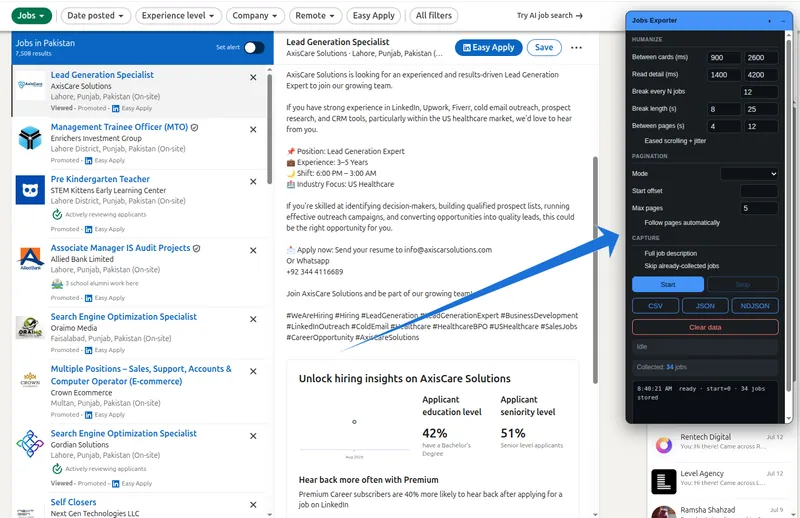
That appears on a page URL like https://www.linkedin.com/jobs/search/?currentJobId=*** . If you had installed it, you are still not able to see this UI after move on this page refresh your page.
The two fields worth knowing about: location is often written as the metro area rather than the city, and the salary field is missing on most posts because employers do not have to supply it. Empty salary columns on LinkedIn are usually correct, not a bug.
Wellfound
Wellfound groups listings under the company rather than listing them flat, so one card can hold several roles. The script walks the roles inside each company block and writes one row per role, repeating the company name across them.
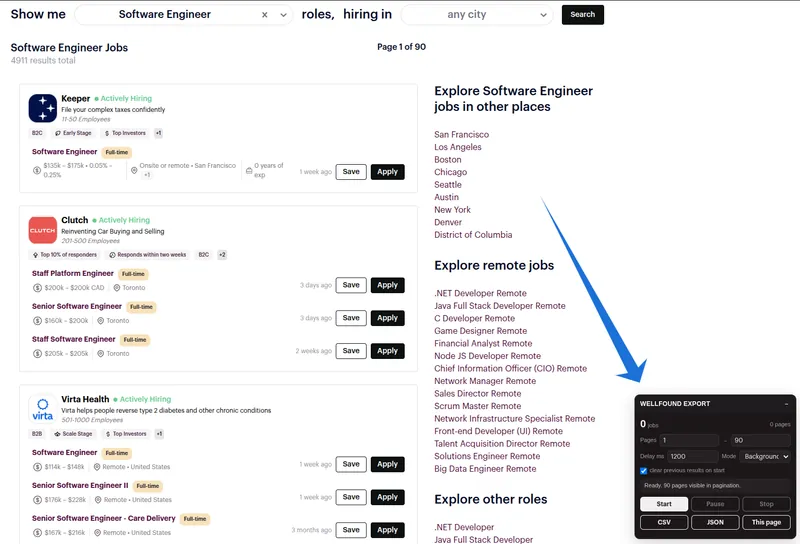
You are able to see on a page URL https://wellfound.com/role/software-engineer last one is your job query; magic will be there. The work performed in the background has no change page during this process. This URL is just a pattern; you can change your search query.
Salary here is the useful part — Wellfound publishes ranges and equity bands on most posts, so salaryMin, salaryMax and the raw string all tend to fill in. Sorting the export by salaryMax gives you a usable shortlist in one click.
Glassdoor
Glassdoor paginates behind a "Show more" button and pushes a sign-up modal at you after roughly the third batch. The script dismisses the known close buttons before each click, then waits up to nine seconds for new cards before retrying.
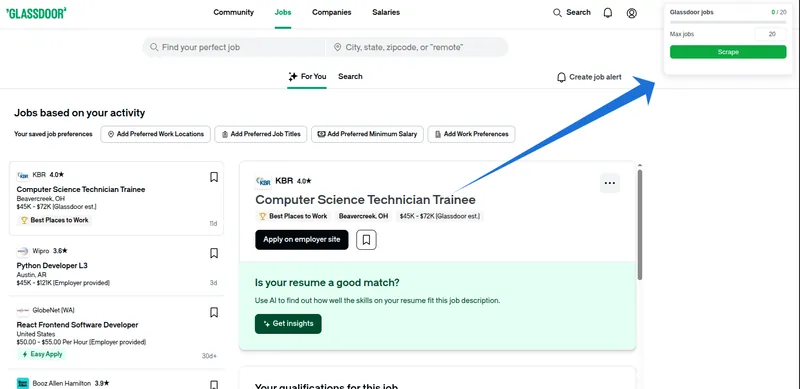
https://www.glassdoor.com/Job/**** This pattern of URL page will recognize as a jobs page. You would be able to see the UI to export these by one click with the parameter of maximum jobs.
It also runs on the regional domains — .co.uk, .ca, .com.au, .de and the rest — because each one is a separate site with the same markup. If the run stops early on Glassdoor, it is almost always a modal that appeared with a class name I have not seen yet, and the fix is one line.
The columns worth exporting
Nine columns cover almost every use case. More fields exist in the page — company logo, rating, badges — but they bloat the file without changing a decision.
Column | Example value | Why it earns its place |
|---|---|---|
| Senior Data Analyst | Sorting and keyword filters |
| Northgate Logistics | Grouping, blocklists |
| Islamabad (Hybrid) | The "near me" part |
| 121000 | Numeric, so it sorts |
| 148000 | Range width shows flexibility |
| $121K – $148K (Employer est.) | The wording you lose in the numbers |
| 3d | Filters out stale posts |
| true | Sorts by effort required |
| https://… | Clickable in the spreadsheet |
Why salary needs three columns, not one
Job boards write salary as free text: $121K - $148K (Employer est.), £22/hr, Competitive. A single column of that is unsortable. Splitting it into a parsed minimum, a parsed maximum, and the original string means you can sort numerically and still check the wording when a number looks wrong.
Handing the file to AI, or to a person
A CSV is the format both audiences already accept. Upload it to an AI chat tool and you can ask for shortlisting, clustering or gap analysis in plain English rather than building formulas.
Attached: 214 job listings exported from a "jobs near me" search.
1. Group them by seniority and count each group.
2. List the 10 highest salaryMax roles where easyApply is true.
3. Name the five skills appearing most often in the titles.
Answer in a table. Do not invent rows.
For sharing, the same file drops straight into Google Sheets or Airtable, and a pivot table by companyName tells you within seconds which employers are hiring in volume. The file is the deliverable — nobody needs the script installed to read it.
Where this breaks, and what it looks like when it does
Every job board export fails eventually, and it fails in predictable ways. The selectors are the fragile part: the script finds fields by attributes like data-test="job-title", and when the site ships a redesign those attributes change. The symptom is a CSV with the right number of rows and empty columns.
- The "Show more" button disappears. Some boards swap it for infinite scroll after a certain depth. The script stops early and reports the count it managed rather than pretending it finished.
- Duplicate cards. Job boards re-render the list and repeat listings. Deduplicating on the job ID — falling back to title plus company plus location — is what keeps 200 rows from becoming 260.
- Modal popups. Sign-up prompts and job-alert overlays intercept the click on "Show more". The loop dismisses known close buttons before each batch and retries twice before giving up.
- Commas inside job titles. "Analyst, Pricing" splits into two columns in a naive export. Fields need quoting and internal quotes need doubling, as set out in RFC 4180, the CSV formatting specification.
- Regional domains.
.co.uk,.ca,.com.auand.deare separate sites. A script matched only to.comsilently does nothing on the others. - Login walls and rate limits. Fast repeated loading triggers a challenge page. Slower batches and a lower maximum are the fix, not a workaround.
When something does go wrong, the browser console is the first place to look — a script that logs its extracted objects lets you see whether the problem is extraction or export. More detail on how I structure that logging sits in my notes on building browser automation.
Frequently Asked Questions
Is a userscript the same as a Chrome extension?
Not quite. A Chrome extension is a packaged app with its own permissions and store listing. A userscript is a single JavaScript file that runs inside a host extension such as Tampermonkey. Userscripts are faster to build and change; extensions make more sense when you need a persistent interface or background scheduling.
Will this work on any job board?
The pattern works on any board that renders listings as HTML in the page. Each site needs its own selectors, because no two write their markup the same way. Sites that render results inside a canvas element, or that require solving a challenge on every page load, are a poor fit for this approach.
How many listings can I export in one run?
Usually as many as the board will paginate through, commonly a few hundred before results repeat or thin out. I set a maximum in the panel so the run stops on a number you chose rather than looping until something breaks. Larger jobs are better split across several searches.
Can it run automatically every morning?
A userscript runs when you open the page, so it is manual by design. Scheduled collection needs a headless setup — Python with Playwright on a server, writing to a database or Google Sheet. That is a different build, and I explain the trade-offs across the DatafetchPro walkthroughs on data extraction.
What I would build for this
For a recurring jobs near me export, I would write a userscript matched to your board, mapped to your columns, with deduplication and a stop control. Setup takes a day. Tell me the search URL and the fields you need on the DatafetchPro project request page.