You open a form. You type your name, your email and your phone number. Then you realise you have filled out this same kind of form twenty times already.
It is not hard work. It is just repetitive data entry, and it is annoying.
So I stopped doing it by hand. I built a Google Forms auto filler script, a small forms autofill tool that does the typing for me.
It runs as a Tampermonkey userscript. Tampermonkey is a browser extension that runs your own JavaScript on sites you choose. The script reads the questions on the page. Then it fills them using answers you set once at the top of the file.
You open the form, click a button and watch it work. The full script is at the end of this post, free to copy.
What the Google Forms auto filler script actually does
When the script is active, a small floating button appears in the bottom-right corner of the form. Click it to open a panel. The panel lists every question the script can answer, in order.
The floating panel
The panel has three buttons:
- Next Step fills one question and stops. This lets you check its work before trusting it with the rest.
- Complete This Page fills every remaining question on the current page.
- Submit Form finds the submit button and clicks it. It asks you to confirm first.
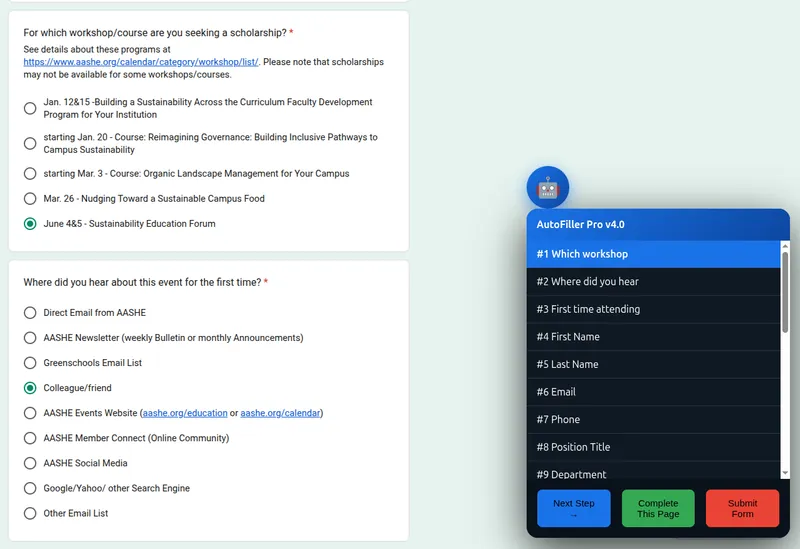
The list highlights the next question, so you always know where the script is. I use Next Step the first time I try a new form. After that, I use Complete This Page.
The three question types it handles
Forms are rarely just text boxes. The script understands three kinds of question.
Short text and long answers
For type: 'input', the script looks inside the question for a text field. It checks for input[type="text"], input[type="email"], input[type="tel"] or textarea, then sets the value. Paragraph questions work the same way as one-line ones.
Multiple choice
For type: 'select', the script looks through the radio options. It clicks the first one whose text contains your value. You don't need to type the full option. A short, unique part of it is enough.
Checkboxes
For type: 'multiple', the value is a list. The script ticks every box whose label matches an item in that list. It checks aria-checked first, so it never unticks a box that is already selected.
Installing the Tampermonkey userscript
You don't need heavy software or a build step.
- Install the official Tampermonkey browser extension for your browser.
- Open the extension's dashboard and create a new script.
- Paste in the code from the end of this post and save.
- Open any form on
docs.google.com/formsand look for the floating button.
The @match and @include lines limit the script to Google Forms. It stays dormant on every other site.
The @run-at document-start line loads the script early, before the page finishes loading. This matters because the script waits for the form to appear. It does not assume the form is already there.
Editing FORM_ACTIONS to autofill Google Forms with your answers
This is the only part you need to change. It is also the part most people skip. Get it right once and you never repeat that data entry again.
Near the top of the file is a list called FORM_ACTIONS. Each entry describes one question and the answer to give.
The published version uses sample data from a conference sign-up form: John Doe, Green University, Austin TX. That was the form I built it against. Replace those values with your own.
The four fields in every entry
labelis the text the script looks for in the question."First Name"matches any question that contains those words.questionTextis a backup search term. Use it when the label is too common to be unique. For example, if several questions mention "experience",questionText: "experience level"picks the right one.typeisinput,selectormultiple. These match the three question types above.valueis what to type or which option to click. Formultiple, it is a list.
Matching ignores capital letters and works on partial text. Short, unique fragments work better than long exact copies. If two questions contain your search term, the script picks the first one on the page.
Why a browser automation script needs delays and real input events
The script does not rush. It waits 400 milliseconds after each question and another 300 between steps.
There is a good reason for this. Google Forms listens for events. It does not read field values directly.
So setting field.value = 'John' on its own only changes what you see. The form still thinks the field is empty when you submit.
The script fixes this. After setting a value, it fires input and change events with bubbles: true. That way, the form's listeners further up the page actually hear them. MDN's reference on dispatchEvent explains why bubbling matters here.
The delays help too. Some forms redraw sections after you answer. A script that fills everything at once may try to use elements that are about to be replaced. Filling at roughly human speed avoids this problem.
The same idea sits behind most of the browser automation work I take on, whether it is a simple form or a full checkout flow.
When the script stops working
Two problems cause almost every failure.
The "Not found" warning
You may see a yellow message that says ⚠️ Not found: followed by a question name. This means the script could not find that question. Either your label no longer matches the form's wording, or Google has changed its class names.
The script finds questions using the selector .Qr7Oae[role="listitem"]. Google generates that class name automatically and changes it without warning. If every question fails at once, this is almost always why.
To fix it:
- Open your browser's element inspector.
- Click on a question.
- Copy the current class name from its container.
- Paste it into the
findQuestionfunction.
New to selectors? The querySelectorAll documentation on MDN explains the syntax.
A Trusted Types error at startup
The first line inside the script calls window.trustedTypes.createPolicy('default', ...). Some pages already have a default policy. On those pages, this line throws an error and the script never starts. You won't see a button at all.
To fix it, wrap that line in a try / catch. If your browser does not enforce the policy, you can delete the line instead. The Trusted Types API on MDN explains what the policy protects against.
What this script does not do
It handles three question types and no more.
It does not handle file uploads, date and time pickers, linear scales or grid questions. When it meets one, it logs a warning and moves on.
It also fills one page at a time, by design. If your form has several sections, move to each one and click Complete This Page again.
One more thing, stated plainly. Whether you may automate a form depends on the form owner's terms of service. That is not a technical question. I can explain how the automation works. Deciding where to use it is up to you.
Where forms autofill is genuinely useful
This approach pays off wherever the same form comes up again and again:
- Testing your own forms during development, when you need twenty realistic submissions
- Internal company forms that ask the same nine questions every week
- Repeated sign-ups across events or portals
- Filling a form as one step in a longer automated workflow
Set your answers once, reuse them forever, and let forms autofill take the data entry off your hands.
Getting the same thing for a form that is not Google's
This script is built for one job. It knows how Google Forms is structured and nothing else. Point it at Typeform, a Salesforce page or an internal portal behind a login, and none of its selectors will work.
Building forms autofill for a different site is the same job with different plumbing. You find where the questions live. You work out which events the page listens for. And you handle what happens when a field fails validation.
That is what I do. I build it as a Tampermonkey userscript, a Chrome extension, a Playwright bot, or a scheduled job that writes straight to a sheet or database.
Do you have a repetitive form, a data entry workload or a data extraction problem of your own? Tell me what the form looks like and I will scope it. You can also read more about how I work and what I build, or browse other write-ups on scraping and automation to see the range first.
The full script
// ==UserScript==

// @name         Google Forms Auto-Filler Pro

// @namespace    http://tampermonkey.net/

// @version      4.1

// @description  Complete Current Page (without auto-next) + Notifications

// @author       You

// @match        https://docs.google.com/forms/*

// @include      https://docs.google.com/forms*

// @run-at       document-start

// @grant        none

// ==/UserScript==


(function () {

    'use strict';

    window.trustedTypes.createPolicy('default', {createHTML: (string, sink) => string})

    console.log('%c[AutoFill v4.1] Complete Current Page Ready', 'color:#1a73e8;font-weight:bold');

    /*

    https://docs.google.com/forms/d/1IvjF5l0QtPA3t6M9W-OAn0H2JMjgLnI2vaG_g2-fQoA/viewform?edit_requested=true

    sample is picked from this site

    */

    const showNotifications = true;   // ← Change to false to disable popups


    const FORM_ACTIONS = [

        { label: "Which workshop", questionText: "workshop", type: 'select', value: 'June 4&5 - Sustainability Education Forum' },

        { label: "Where did you hear", questionText: "hear about", type: 'select', value: 'Colleague/friend' },

        { label: "First time attending", type: 'select', value: 'Yes' },

        { label: "First Name", type: 'input', value: 'John' },

        { label: "Last Name", type: 'input', value: 'Doe' },

        { label: "Email", type: 'input', value: '[email protected]' },

        { label: "Phone", type: 'input', value: '+1-555-0100' },

        { label: "Position Title", type: 'input', value: 'Sustainability Coordinator' },

        { label: "Department", type: 'input', value: 'Facilities' },

        { label: "Organization", type: 'input', value: 'Green University' },

        { label: "City & State", type: 'input', value: 'Austin, TX' },

        { label: "Zip Code", type: 'input', value: '78701' },

        { label: "Country", type: 'input', value: 'United States' },

        { label: "Gender identity", type: 'select', value: 'Prefer not to say' },

        { label: "Race/ethnicity", questionText: "Race/ethnicity", type: 'multiple', value: ['White'] },

        { label: "Experience level", questionText: "experience level", type: 'select', value: 'an intermediate-level professional' },

        { label: "Are you a student", type: 'select', value: 'No' },

        { label: "AASHE member", type: 'select', value: 'Yes' },

        { label: "Describe your work", questionText: "Describe your work", type: 'input', value: 'I coordinate campus sustainability initiatives including energy audits, waste reduction programs, and student engagement campaigns.' },

        { label: "How will you use the knowledge", questionText: "How will you use", type: 'input', value: 'I will apply the skills to improve our institution\'s sustainability reporting and curriculum integration.' },

        { label: "Financial support needed", questionText: "Financial support", type: 'input', value: 'I need full registration support. I have applied for departmental funding but was denied due to budget constraints.' },

        { label: "Previous AASHE support", type: 'input', value: 'None.' },

        { label: "Attendance commitment", type: 'select', value: 'Yes, I am committed to attending.' },

    ];


    const sleep = (ms) => new Promise(r => setTimeout(r, ms));


    function log(msg, type = 'info') {

        const colors = { info: '#1a73e8', success: '#34a853', warn: '#fbbc05', error: '#ea4335' };

        console.log(`%c[AutoFill] ${msg}`, `color:${colors[type]}`);

        if (showNotifications) showToast(msg, type);

    }


    function showToast(message, type = 'info') {

        let toast = document.getElementById('__gf_toast');

        if (!toast) {

            toast = document.createElement('div');

            toast.id = '__gf_toast';

            toast.style.cssText = `position:fixed; bottom:100px; right:30px; z-index:2147483647; padding:12px 18px; border-radius:8px; color:white; font-size:14px; box-shadow:0 6px 20px rgba(0,0,0,0.4); max-width:320px;`;

            document.body.appendChild(toast);

        }

        const colors = { info: '#1a73e8', success: '#34a853', warn: '#fbbc05', error: '#ea4335' };

        toast.style.backgroundColor = colors[type];

        toast.textContent = message;

        toast.style.display = 'block';

        setTimeout(() => toast.style.display = 'none', 2800);

    }


    function findQuestion(action) {

        const questions = document.querySelectorAll('.Qr7Oae[role="listitem"], .freebirdFormviewerViewItemsItemItem');

        for (let q of questions) {

            const text = q.textContent.toLowerCase();

            if (action.label && text.includes(action.label.toLowerCase())) return q;

            if (action.questionText && text.includes(action.questionText.toLowerCase())) return q;

        }

        return null;

    }


    async function executeAction(action) {

        const q = findQuestion(action);

        if (!q) {

            log(`⚠️ Not found: ${action.label || action.questionText}`, 'warn');

            return false;

        }


        if (action.type === 'input') {

            const field = q.querySelector('input[type="text"], input[type="email"], input[type="tel"], textarea');

            if (field) {

                field.focus();

                field.value = action.value;

                field.dispatchEvent(new Event('input', { bubbles: true }));

                field.dispatchEvent(new Event('change', { bubbles: true }));

            }

        } else if (action.type === 'select') {

            const opts = q.querySelectorAll('[role="radio"], label');

            for (let opt of opts) {

                if (opt.textContent.includes(action.value)) { opt.click(); break; }

            }

        } else if (action.type === 'multiple') {

            const cbs = q.querySelectorAll('[role="checkbox"]');

            for (let cb of cbs) {

                const txt = cb.closest('label')?.textContent || '';

                if (action.value.some(v => txt.includes(v))) {

                    if (cb.getAttribute('aria-checked') !== 'true') cb.click();

                }

            }

        }

        await sleep(400);

        return true;

    }


    // ==================== UI ====================

    function createPanel() {

        if (document.getElementById('__gf_panel')) return;


        const panel = document.createElement('div');

        panel.id = '__gf_panel';

        panel.innerHTML = `

            <style>

                #__gf_panel { position:fixed; bottom:25px; right:25px; z-index:2147483647; font-family:system-ui; width:430px; }

                #__gf_trigger { width:68px; height:68px; border-radius:50%; background:linear-gradient(135deg,#1a73e8,#0d47a1); color:white; font-size:32px; border:none; box-shadow:0 8px 25px rgba(26,115,232,0.6); cursor:pointer; }

                #__gf_card { display:none; background:#0f1923; color:#fff; border-radius:18px; box-shadow:0 20px 70px rgba(0,0,0,0.8); overflow:hidden; }

                #__gf_card.open { display:block; }

                .gf-step { padding:12px 16px; border-bottom:1px solid #334; cursor:pointer; }

                .gf-step:hover { background:#1a2a44; }

                .gf-step.active { background:#1a73e8; font-weight:600; }

                .control-btn { padding:13px 18px; margin:5px; border-radius:8px; font-size:15px; cursor:pointer; border:none; flex:1; }

            </style>


            <button id="__gf_trigger">🤖</button>

            <div id="__gf_card">

                <div style="background:linear-gradient(135deg,#1a73e8,#0d47a1); padding:16px; font-weight:bold;">AutoFiller Pro v4.1</div>

                <div id="__gf_steps" style="max-height:380px; overflow-y:auto;"></div>


                <div style="padding:12px; display:flex; flex-wrap:wrap; gap:8px; background:#0a121b;">

                    <button class="control-btn" id="__gf_next" style="background:#1a73e8;">Next Step →</button>

                    <button class="control-btn" id="__gf_complete" style="background:#34a853;">Complete This Page</button>

                    <button class="control-btn" id="__gf_submit" style="background:#ea4335;">Submit Form</button>

                </div>

            </div>

        `;


        document.body.appendChild(panel);


        const trigger = document.getElementById('__gf_trigger');

        const card = document.getElementById('__gf_card');

        const nextBtn = document.getElementById('__gf_next');

        const completeBtn = document.getElementById('__gf_complete');

        const submitBtn = document.getElementById('__gf_submit');


        trigger.onclick = () => card.classList.toggle('open');


        let currentIndex = 0;


        function renderSteps() {

            const container = document.getElementById('__gf_steps');

            container.innerHTML = '';

            FORM_ACTIONS.forEach((act, i) => {

                const div = document.createElement('div');

                div.className = `gf-step ${i === currentIndex ? 'active' : ''}`;

                div.textContent = `#${i+1} ${act.label || act.questionText}`;

                container.appendChild(div);

            });

        }


        // Next Step (single)

        nextBtn.onclick = async () => {

            if (currentIndex >= FORM_ACTIONS.length) return;

            await executeAction(FORM_ACTIONS[currentIndex]);

            currentIndex++;

            renderSteps();

        };


        // Complete This Page — fills remaining questions on CURRENT page only

        completeBtn.onclick = async () => {

            log('Filling remaining questions on this page...', 'info');


            let filledCount = 0;

            for (let i = currentIndex; i < FORM_ACTIONS.length; i++) {

                const success = await executeAction(FORM_ACTIONS[i]);

                if (success) filledCount++;

                currentIndex = i + 1;

                renderSteps();


                // Optional: small delay so you can see progress

                await sleep(300);

            }


            log(`✅ Completed ${filledCount} questions on this page`, 'success');

        };


        submitBtn.onclick = () => {

            if (confirm('Submit the form now?')) {

                const btn = Array.from(document.querySelectorAll('[role="button"]')).find(b =>

                    b.textContent.trim().toLowerCase().includes('submit')

                );

                if (btn) btn.click();

            }

        };


        renderSteps();

        log('✅ Ready! Use "Complete This Page" to finish current page.', 'success');

    }


    function boot() {

        if (document.getElementById('__gf_panel')) return;

        if (document.querySelector('.Qr7Oae')) createPanel();

        else setTimeout(boot, 700);

    }


    boot();

    setTimeout(boot, 2500);

})();