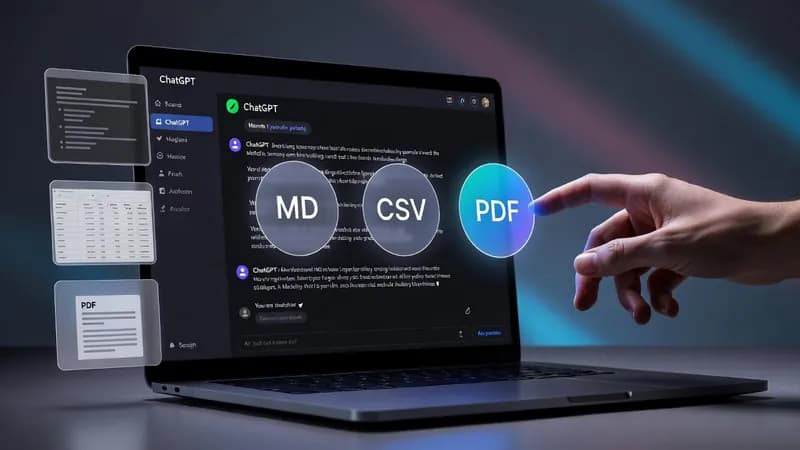
There is no export button in ChatGPT. You can work through a problem for forty minutes, end up with a detailed breakdown or a content plan that finally works, and then find there is no way to get it out. No Save as PDF, no download option — just a chat window, a mouse, and a lot of copying.
So I built a free Tampermonkey userscript that fixes it. Install it once and you can export ChatGPT conversations to Markdown, CSV, or PDF in one click, from buttons that sit in the ChatGPT toolbar where they should have been in the first place. This post covers what it does, how to install it, which format to pick, how it works, and what it does not handle.
Get the script: ChatGpt Conversation Export — paste this in and it's ready to use.
What the userscript does
Once installed, three buttons appear in the ChatGPT toolbar: MD, CSV, and PDF. No floating panel to hunt for, no separate window. They're just there, every time you need them.
Click MD and the conversation downloads as a clean, properly formatted Markdown file. Click CSV and you get a structured spreadsheet with every message organized into rows and columns. Click PDF and you get a print-ready document you could hand to a client without embarrassment.
It doesn't just grab whatever text is visible on screen. It pulls the conversation title, every message in the correct order, role labels distinguishing your prompts from ChatGPT's replies, and the model information showing which version generated the output. Everything you need to reconstruct the full context is in the file.
It runs entirely inside your browser. Nothing is sent to an external server, which matters if you're working with client material or anything confidential. It activates on ChatGPT pages automatically and needs no configuration after installation.
Installing the Tampermonkey userscript
The whole thing takes about a minute. Tampermonkey is a free browser extension that runs small user-written scripts on pages you visit — think of it as a place to keep custom browser tweaks.
Step 1 — Install Tampermonkey
Grab it from the official Tampermonkey site, which links to builds for Chrome, Edge, Firefox, Safari, and Opera. Install it like any other extension and you'll see a small icon appear in your toolbar.
Step 2 — Add the script
Open the Tampermonkey dashboard, create a new script, and paste in the code from the link above. Save it. The script is now registered and enabled.
Step 3 — Refresh ChatGPT
Reload any open ChatGPT tab. The script only injects itself on page load, so a tab that was already open before installation won't pick it up until you refresh.
What it looks like when it worked
Open any conversation with at least one exchange in it. The MD, CSV, and PDF buttons should be sitting in the toolbar. Click MD as a test — a .md file should land in your downloads folder within a second, and opening it should show the conversation title at the top with each message labeled by role.
Choosing between Markdown, CSV, and PDF
Three formats isn't feature bloat. Each one exists because it's the right answer to a different question.
Markdown, for notes and knowledge bases
If your work lives in Notion, Obsidian, Bear, or Roam, a ChatGPT Markdown export drops in without reformatting. Headers stay headers, code blocks stay code blocks, and the conversation structure is readable the moment you paste it. Markdown is a plain-text formatting convention — the CommonMark specification defines the version most tools support. For anyone building a reference library, this removes the cleanup step that normally follows manual copying.
CSV, for spreadsheets and analysis
CSV is the format that opens the most doors. Each row holds one message: role, content, position in the conversation, plus metadata. That structure makes the data usable in Excel, Google Sheets, Python, R, or any database, and it follows RFC 4180, the comma-separated values spec, so nothing chokes on it.
Getting a ChatGPT chat to CSV by hand doesn't scale — twenty conversations of thirty messages each is six hundred copy-paste operations. One click per conversation does. If you're analyzing AI output in bulk, assembling datasets, or feeding results into a downstream process, this is the export you'll use most.
PDF, for sharing and archiving
Use PDF when presentation and permanence matter. The exported file is clean and formatted like a document rather than a transcript, with role labels making it easy to follow who said what, and the title and model information included for context. Reach for a ChatGPT to PDF export when you need to share a conversation with someone who doesn't use ChatGPT, include AI-assisted research in a formal deliverable, or archive something that will still open in ten years regardless of what happens to the ChatGPT interface.
Who gets the most out of this
- Writers and content creators — export a full brainstorming session to Markdown and drop it straight into your writing tool, so good ideas don't get stranded in the chat window.
- SEO and marketing people — keyword lists, outlines, and campaign frameworks are more useful in a spreadsheet than a chat log. CSV puts them where the work actually happens.
- Researchers and academics — Markdown into Obsidian or Notion turns temporary chat sessions into permanent, searchable notes.
- Developers and data professionals — cleanly labeled, consistently formatted conversation data that plugs into a pipeline without a parsing step.
- Consultants and business users — a formatted PDF of a research session is something you can include in client work as documented background.
How it works, without the jargon
ChatGPT builds its page with JavaScript after the initial load, so a script can't read the HTML that arrives from the server and call it a day. Anything that reads a modern web app has to wait for the interface to render and then track it as content changes — the browser API for that is covered in MDN's MutationObserver documentation. That's the same class of problem I solve in most of the custom browser automation work I take on, just scoped down to one site.
The script reads ChatGPT's own page structure rather than guessing at text, which is why it can label roles correctly and keep long conversations in order.
What it doesn't capture
Text is what comes out. Images you've generated or uploaded, canvas documents, and rendered file attachments aren't included in the export — you'll get the conversation, not the artifacts around it. And because the script reads the live page, anything ChatGPT hasn't loaded yet isn't there to read.
One more thing worth saying plainly: automating another company's interface sits under that company's terms of service, and reading those is your call to make, not mine. I'll tell you what's technically possible; the policy decision stays with you.
When the buttons don't appear
- You didn't refresh. The script injects on page load. Reload the tab.
- The script is disabled. Open the Tampermonkey dashboard and check the toggle is on.
- You're on the wrong page. Open an actual conversation, not the new-chat screen.
- A long chat exported short. Scroll all the way to the top of the conversation first so the full history is loaded, then export.
- It worked last month and stopped. ChatGPT changes its interface regularly. When the underlying page structure moves, a script reading that structure needs updating — that's the standing cost of any userscript.
Common questions
Is it safe to export ChatGPT conversations this way?
The script runs locally in your browser and sends nothing anywhere. Your conversations don't leave your machine.
Does it work on the ChatGPT mobile app?
No. Tampermonkey is a desktop browser extension, so this needs ChatGPT in a browser.
Can I export several conversations at once?
Not with this script — it's one conversation per click, by design. Bulk export across an account is a different job, and it's the kind of thing I build to order.
Do I need a paid ChatGPT plan?
No. The script reads the page you're already looking at, whatever plan you're on.
If you need something this script doesn't do
This one does a single job. Most of the requests I get are variations on it: pull data from a site that has no export, on a schedule, into a format someone can actually use.
That's the whole of what I do at DatafetchPro — custom scrapers and automation built to order, one job at a time. In practice that means Python and Playwright bots, no-code browser macros in UI.Vision RPA, AI-assisted workflows in Automa, Chrome extensions and Tampermonkey userscripts like this one, cleaned data landing in CSV, SQLite, PostgreSQL, Google Sheets, or Airtable, and REST, GraphQL, and webhook integrations that run on a schedule instead of when you remember to press a button.
If you've got a site you need data out of and no way to get it, tell me what you're trying to extract and I'll tell you whether it's a two-hour job or a two-week one before you spend anything. All my work goes through Fiverr. There's more on how I work and what I've built, and other automation write-ups in the DatafetchPro automation blog.