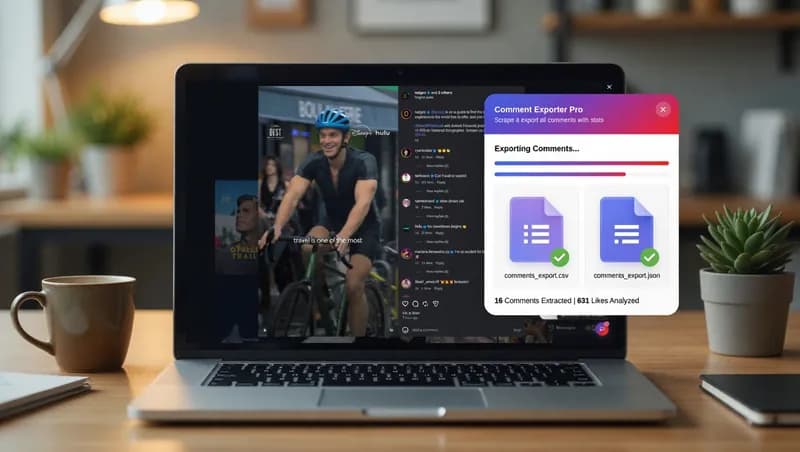
Instagram comments are full of useful information. Customer feedback, audience questions, buying signals. But none of it shows up in your analytics dashboard.
And Instagram won't help you get it out. There's no download button. No export menu. Nothing.
So most people do it by hand. Highlight. Copy. Paste. Repeat. On a reel with 2,000 replies, that's your whole afternoon.
I built a browser script that does it for you. In this guide, you'll learn:
- What data the script collects
- Which export format to choose
- How to run it, step by step
- When you need something bigger than a browser script
Quick Start (60-Second Version)
Short on time? Here's the whole process:
- Install the Tampermonkey browser extension.
- Add the Instagram Comment Exporter Pro script.
- Open the Instagram post URL and scroll to load the comments.
- Export to CSV, JSON, or Markdown from the floating panel.
That's it. The details are below.
How the Script Works
The script reads the comments on your screen and saves them to a file.
Behind the scenes, it does two jobs:
- Web scraping: It reads the page automatically, just like you would, but much faster.
- Data extraction: It picks out only the useful fields and saves them in a clean file.
This IG comment exporter works on any public post or reel you already have open. The result is structured data you can sort, filter, and share. No copying needed.
What Data You Get
A comment is more than just text. The real value is in the details: who said it, when, and how many people agreed.
Here's the comment data the script collects:
Field | What It Tells You |
Username | Who wrote the comment |
Comment text | What they said |
Timestamp | When they said it |
Likes | How many people liked it |
Replies | The responses underneath it |
Verified badge | Whether they have a blue check |
Profile URL | A direct link to their profile |
Why the last two matter: The verified badge and profile URL turn a list of comments into a list of real people you can contact.
It Works on Every Layout
Instagram shows comments differently depending on where you view them:
- A post in your feed
- A reel
- A post opened from someone's profile
- Any of the above on mobile web
Most scripts break when the layout changes. This one spots the layout and adjusts automatically.
It Stays Out of Your Way
A small floating panel sits on top of the page. You can keep browsing while it works.
Which Export Format Should You Pick?
Each format does a different job. Pick the one that matches where your data is going.
Format | Pick It If You Want To... |
CSV | Open the data in Excel, Google Sheets, or Airtable |
JSON | Feed the data into code, an API, or a database |
Markdown | Read or share the comments as a document |
CSV: Best for Spreadsheets
CSV is a simple table saved as plain text. Commas separate the columns. (It's defined in the IETF's RFC 4180 specification for comma-separated values.)
Choose CSV if you want to:
- Sort comments by likes
- Filter for verified accounts
- Share the file with non-technical teammates
JSON: Best for Developers
JSON keeps replies attached to the comments they belong to. Nothing gets flattened or repeated.
Choose JSON if the file is going into a script, API, or database.
Markdown: Best for Reading
Markdown is plain text that still looks neat and formatted.
Choose Markdown for client reports, Notion pages, or anything people will read like a document.
Step-by-Step: How to Export Comments from an Instagram Post
Step 1: Install the Script
- Install Tampermonkey in your browser.
- Get the code here -> Instagram Comments Exporter
- Save it with Ctrl+S.
- Reload the Instagram page.
Step 2: Load the Comments
Open the Instagram post URL you want. Then scroll down until all the comments you need are showing.
Don't skip this step. Instagram loads comments in small batches as you scroll. The script can only save comments that have actually appeared on your screen.
Step 3: Export Your File
Run the IG comment exporter. Pick your format from the floating panel. Save the file.
Done.
Who Uses This (and Why)
Different people want different things from the same comments.
Marketers look for buying questions. Then they use the profile URL to follow up with interested people.
Researchers study the text and timestamps. This helps them track how opinions change over time.
Agencies pull likes and reply counts. These numbers go straight into client reports.
Creators save their own comments. They want to see which posts sparked real conversations, not just quick likes.
Brands running Instagram giveaways export every entry. This makes it easy to check the rules, remove duplicates, and pick a fair winner.
When You Need More Than a Browser Script
A browser script is perfect when:
- You have a handful of post links
- You're happy to run it yourself
- You need the data right now
It's not the right fit when:
- You need data from 200+ posts every week
- You want it to run on a schedule
- You want results saved straight to a database
For bigger jobs like that, you need a proper pipeline. That usually means:
- A headless browser (a browser with no visible window) running on a server
- A database like PostgreSQL or SQLite
- A timer that runs everything automatically
This is usually built with Microsoft's Playwright browser automation framework. It's a different kind of project. My six automation service lines cover everything from simple no-code tools to fully scheduled pipelines.
A Note on Rules and Permissions
I build the tool. Whether you use it, and how, is up to you.
Before running anything at scale, read these two pages:
- Instagram's rules: Terms of Use published by Meta
- How sites control automated access: Google Search Central's introduction to robots.txt
How you read them for your own situation is your call.
One thing is worth keeping in mind, though. Saving comments from a public post you can already see, at normal human speed, is very different from flooding a server with thousands of requests a minute.
Need a Custom Version?
If this script does what you need, you're all set.
If not, I can build something custom. For example:
- A version for a different platform
- Extra or different data fields
- Scheduled runs across a list of post links
- Results sent straight to your database
I take work through Fiverr only.
- Ready to go? Send me your scraping requirements and get a quote.
- Want to know more first? Read how I work as a one-person shop.
- Curious about my other projects? Browse more web scraping and automation write-ups.
Just tell me three things: the site, the data you need, and how often. I'll tell you whether you need a browser script or a pipeline, and what it'll cost.