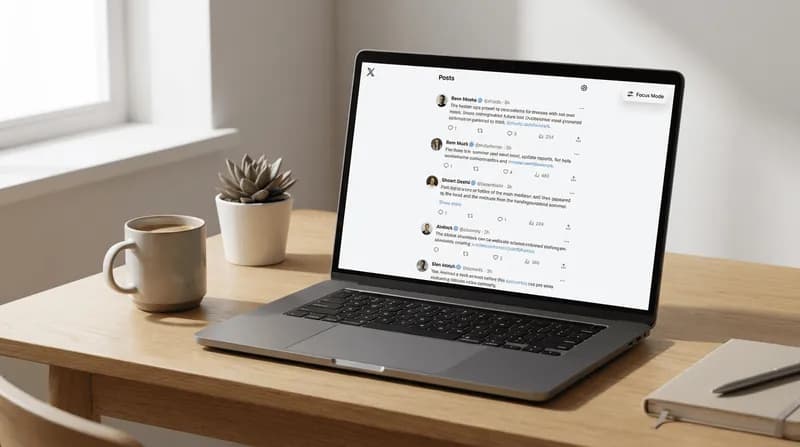
If you've spent any real time on X (formerly Twitter), you already know how distracting it gets. Trending panels, sidebars, "who to follow" suggestions, promoted posts wedged between the accounts you actually chose to see. All of it pulls attention away from what you opened the tab for.
Instead of complaining about it, I built a fix. This Twitter focus mode userscript strips out the noise and leaves you with the timeline. It is not a heavy extension and there is nothing to configure. You install Tampermonkey once, paste the script in, and toggle Focus Mode from the toolbar whenever you want it.
What the Twitter focus mode userscript removes
The goal is narrow on purpose: less clutter, more of the thing you came to read. It does not try to redesign the platform. It makes it usable again.
Hide the Twitter sidebar and trending panel
The right-hand column is where most of the pull comes from. Hide the Twitter sidebar and the trending block goes with it, along with the follow suggestions stacked underneath. What is left is a single column of posts, which is roughly what the site looked like before it grew a recommendations engine.
The main timeline stretches to fill the space, so you get wider posts and fewer eye jumps per scroll.
Highlight links inside posts
The second thing it does is mark up any link inside a post so it stands out from the surrounding text. On a default feed, a URL in a post is easy to scroll straight past. If you are skimming a feed looking for sources, product pages, or job posts, having them visually flagged cuts the amount of re-reading you do.
What a userscript is, and why not an extension
A userscript is a small piece of JavaScript that runs on pages you choose. It sits inside a manager like Tampermonkey rather than being a browser extension of its own, which means no store review, no permissions prompt, and no separate icon cluttering your toolbar. You can read the whole thing in under a minute and edit it yourself.
That matters here. A Chrome extension that hides your sidebar needs permission to read and change data on X. A userscript does the same job with code you can see. If you want the difference explained properly, the MDN reference on querySelector and DOM selection covers the mechanism this script relies on.
I build both. Extensions and userscripts are service line four at DatafetchPro, and which one you want depends on whether it needs to ship to other people. My rundown of the six automation services I offer lays out where each fits.
Tampermonkey install: about two minutes
Step 1 — add Tampermonkey to your browser
Get it from the official Tampermonkey download page. It works on Chrome, Firefox, Edge, Opera and Safari. If you prefer an open-source manager, Violentmonkey works as a drop-in alternative and runs this script unchanged.
On Chrome you will also need Developer Mode switched on under chrome://extensions, otherwise userscripts stay silently disabled. This trips up most people who report the script "not working".
Step 2 — create the script
Click the Tampermonkey icon, choose "Create a new script", delete the template it gives you, and paste the code from the section below. Save with Ctrl+S or Cmd+S.
Step 3 — open X and toggle Focus Mode
Reload x.com. A small Focus Mode button appears in the corner. Click it to turn the clean view on or off. The setting persists, so it stays however you left it next time you open the site.
If nothing happens
Three things account for almost every failure. Developer Mode is off. The script is saved but the toggle next to it in the Tampermonkey dashboard is grey rather than green. Or you are on an old tab that loaded before the script was installed, in which case a hard refresh fixes it.
The script
Paste this into a new Tampermonkey script:
// ==UserScript==
// @name         X/Twitter Focus Mode
// @namespace    http://tampermonkey.net/
// @version      1.1
// @description  Hide sidebars, highlight links, and keep focus on main timeline
// @match        https://x.com/*
// @match        https://twitter.com/*
// @grant        none
// @run-at       document-idle
// ==/UserScript==

(function () {
  'use strict';

  const STYLE_ID = 'tm-x-focus-style';
  const TOOLBAR_ID = 'tm-x-focus-toolbar';

 const css = `
    [data-testid="sidebarColumn"] { display: none !important; }
    [data-testid="DMDrawer"] { display: none !important; }
    [aria-label="Timeline: Trending now"] { display: none !important; }
    [aria-label="Timeline: Explore"] { display: none !important; }

    article a[href^="http"],
    article a[href^="https"] {
      background: rgba(29, 155, 240, 0.12) !important;
      color: #1d9bf0 !important;
      border-radius: 4px !important;
      padding: 0 3px !important;
      text-decoration: underline !important;
      text-decoration-thickness: 2px !important;
    }
  `;

  function ensureStyle() {
    if (document.getElementById(STYLE_ID)) return;
    const style = document.createElement('style');
    style.id = STYLE_ID;
    style.textContent = css;
    document.head.appendChild(style);
  }

  function highlightLinks(root = document) {
    root.querySelectorAll('article a[href]').forEach(a => {
      if (a.dataset.tmXDone) return;
      a.dataset.tmXDone = '1';
      if (a.href.startsWith('http')) {
        a.style.background = 'rgba(29, 155, 240, 0.12)';
        a.style.color = '#1d9bf0';
        a.style.borderRadius = '4px';
        a.style.padding = '0 3px';
        a.style.textDecoration = 'underline';
        a.style.textDecorationThickness = '2px';
      }
    });
  }

  function applyFocusMode(on) {
    document.documentElement.classList.toggle('tm-x-focus-on', on);
    document.body.classList.toggle('tm-x-focus-on', on);
    localStorage.setItem('tm_x_focus', on ? '1' : '0');
  }

  function ensureToolbar() {
    if (document.getElementById(TOOLBAR_ID)) return;

    const bar = document.createElement('div');
    bar.id = TOOLBAR_ID;
    bar.className = TOOLBAR_ID;
    bar.innerHTML = `
      <button id="tmToggle">Toggle Focus</button>
      <button id="tmRefresh" class="secondary">Refresh Links</button>
    `;
    document.body.appendChild(bar);

    document.getElementById('tmToggle').addEventListener('click', () => {
      const enabled = !document.body.classList.contains('tm-x-focus-on');
      applyFocusMode(enabled);
    });

    document.getElementById('tmRefresh').addEventListener('click', () => {
      highlightLinks(document);
    });
  }

  function init() {
    ensureStyle();

    const enabled = localStorage.getItem('tm_x_focus') !== '0';
    applyFocusMode(enabled);

    ensureToolbar();
    highlightLinks(document);

    const obs = new MutationObserver(() => {
      highlightLinks(document);
      ensureToolbar();
    });

    obs.observe(document.documentElement, { childList: true, subtree: true });
  }

  if (document.readyState === 'loading') {
    document.addEventListener('DOMContentLoaded', init);
  } else {
    init();
  }
})();
Why a clean feed matters for research and scraping work
If you are on X for research, lead generation, or automation work rather than entertainment, distraction has a measurable cost in time. A single-column feed means fewer things to read past on each scroll and fewer accidental clicks into content you did not want.
There is a second reason, and it is the one I care about professionally. The same CSS selectors that hide the sidebar are the selectors a scraper uses to find the timeline. Writing this script is a small version of the work I do when I build a bot: identify the stable parts of a page, ignore the rest, and handle the case where the site changes underneath you.
One honest note. This script only changes what you see in your own browser. The moment you extend a userscript toward pulling data off a site, whether that is allowed comes down to that platform's terms of service and its robots.txt file, and that call is yours to make, not mine. I will tell you what is technically possible and how fragile it is. The permission question stays on your side.
When the script breaks, and it will
X ships interface changes regularly, and when they do, attributes like data-testid="sidebarColumn" can be renamed or restructured. When that happens, the sidebar reappears and nothing else visibly goes wrong. That is the expected failure mode for anything built on CSS selectors, and it is why I have kept this script to a dozen lines rather than fifty. Short scripts are cheap to repair.
Fixing it means opening your browser's inspector, finding the new attribute on the sidebar container, and swapping it into the CSS block. If that sentence sounds like a chore, that is precisely the maintenance work people hire me for.
Getting a custom browser userscript built
This one is free and it does one thing. Most of what I get asked for is narrower: hide a specific vendor's dashboard panels, auto-fill a form that a team fills in forty times a day, flag rows in a web table that match a rule, pull a list off a page into a CSV. All of that is a custom browser userscript or a small Chrome extension, and it is usually a day or two of work.
If you have a repetitive browser task and you are not sure whether it is scriptable, describe it to me and I will tell you straight, including when the answer is that it is not worth automating. Start at the DatafetchPro project request page, or read how I work and what I build first. There are more scripts and scraper walkthroughs in the DatafetchPro article archive.